
Search, fetch or browse
The agent has three ways to reach the web:
| Tool | What it does | Good for |
|---|---|---|
| Web search | Asks the search engine set in Search Provider for results. | Finding current information and sources. |
| Web fetch | Downloads a page and returns its content. | Reading a page whose text is in its HTML. |
| Browser | Loads the page in WebKit, runs its JavaScript, and clicks, types and fills forms. | Testing a page you're building, and sites that need JavaScript, interaction or a sign-in. |
Search and fetch are faster for finding and reading text, so the agent keeps the browser for pages that have to actually run. The browser can also open a local HTML file or a development server such as localhost:5173, so it can check the web pages it builds in your project. To choose a search engine or turn web search off, see agent settings.
What you see
Browser tabs work in the background. To see them, open the Activities tab (⌘4) and look under Browser Tabs:
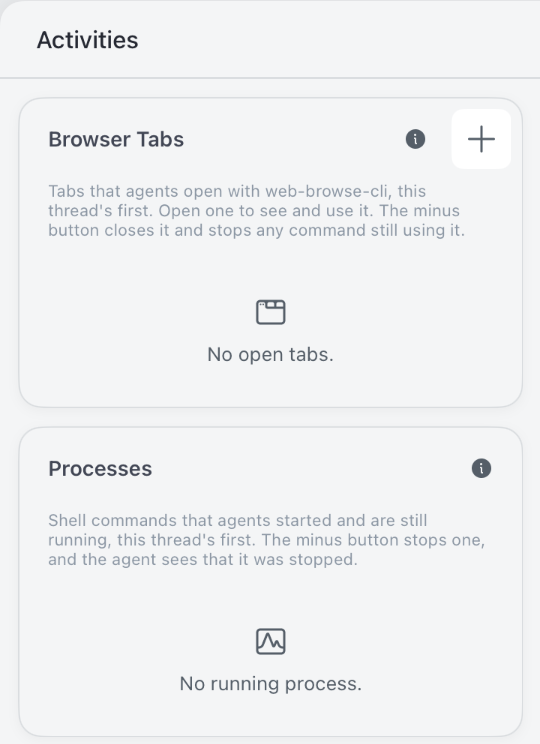
- The current thread's tabs come first, then the tabs of your other threads.
- Click a tab to open it. On Mac it opens in a window of its own; on iPad and iPhone, in a sheet. You can watch the agent work in it, or click and type in the page yourself.
- Closing the window doesn't close the tab. The agent keeps using it, and the page keeps what you did in it.
- The minus button closes the tab and stops any command that's still using it.
The agent can bring a tab to the front itself when it needs you, for example to sign in, solve a CAPTCHA or choose a file. It also does this to show you what it found.
With a model that takes images, such as Qwen 3.8 27B, DeepSeek 4.1 Flash 1017 or GLM 5.3 Flash, the agent can also look at screenshots of the page. Other models work from the page's text and structure.
Signing in to a site
To use a site with your account, sign in yourself instead of giving the agent your password:
- In Browser Tabs, press the plus button (Open a tab). A blank tab opens in the current thread.
- Type the site's address in the tab's address field and sign in with your own credentials.
- Ask the agent to carry on. Your tab is the selected one, so its commands reach it.
You can also ask the agent to open the site first. It brings the tab to the front when the sign-in page appears.
Site data belongs to the project
Cookies, sign-ins and the cache are shared by all the threads in a project, and kept between launches. A site you signed in to in one thread is signed in for the project's other threads too. Other projects don't see it.
- Tabs belong to their thread and close when you quit Local Code. Sign-ins stay.
- Site data is kept by WebKit, not in the project folder. Copying the folder doesn't copy sign-ins, and a renamed or moved project folder starts with no site data.
- On iOS 16, site data lasts only while the app runs.
- Deleting a project deletes its site data.
To sign a project out of every site, choose Clear browser data... from the project's menu in the Projects tab. It appears once the project has site data. Open tabs stay open.
To close the web pages a thread has open, choose Close browser tabs... from the thread's menu. It appears while the thread has open tabs.
What the browser can't do
The agent's clicks and typing are simulated, so a few things need you:
- File uploads, drag and drop, and controls that ignore simulated input. The agent brings the tab to the front and asks you to do that step.
- Dialogs. Confirmation dialogs are dismissed automatically. The agent can work around one when you've asked for the action it guards.
- Hidden windows. While Local Code is minimized or hidden, or the display sleeps, WebKit pauses its pages. Screenshots still work, but animations wait until the tab is visible again.
Privacy and the network
The browser runs on your device, inside the app's sandbox, and every page it loads needs a connection. When you use a cloud model, what the agent reads from a page, such as its text and screenshots, goes to that provider as tool output. With an on-device model it stays on your device. See offline use and privacy.
Treat what a site shows as untrusted: ask the agent to check with you before it submits a form, books something or makes a purchase.