
The workspace
The workspace is the folder Local Code can read and write, and every project is a folder inside it. Choose it from Workspace in the Projects tab:
- Inside App Documents keeps the workspace in Local Code's own storage, contained in the app. This is the default.
- Select a Folder... uses a folder you pick instead, so the agent can work on files you already have there.
The agent can read and write anywhere in the workspace, including other projects in it. To keep work apart, give it a workspace of its own. See what a project keeps on disk for how projects sit inside the workspace.
Folders outside the workspace
When a task needs a folder outside the workspace, the agent runs the permit command with that folder's path. Local Code then shows a folder picker titled Allow Folder Access, opened at that folder. Select it to grant access, or cancel to refuse.
- You must pick the folder the agent asked for. Picking a different one fails, and the agent is told so.
- Access covers the folder and everything inside it, for reading and writing.
- A permitted folder stays permitted after you quit and reopen the app, and it works in every project.
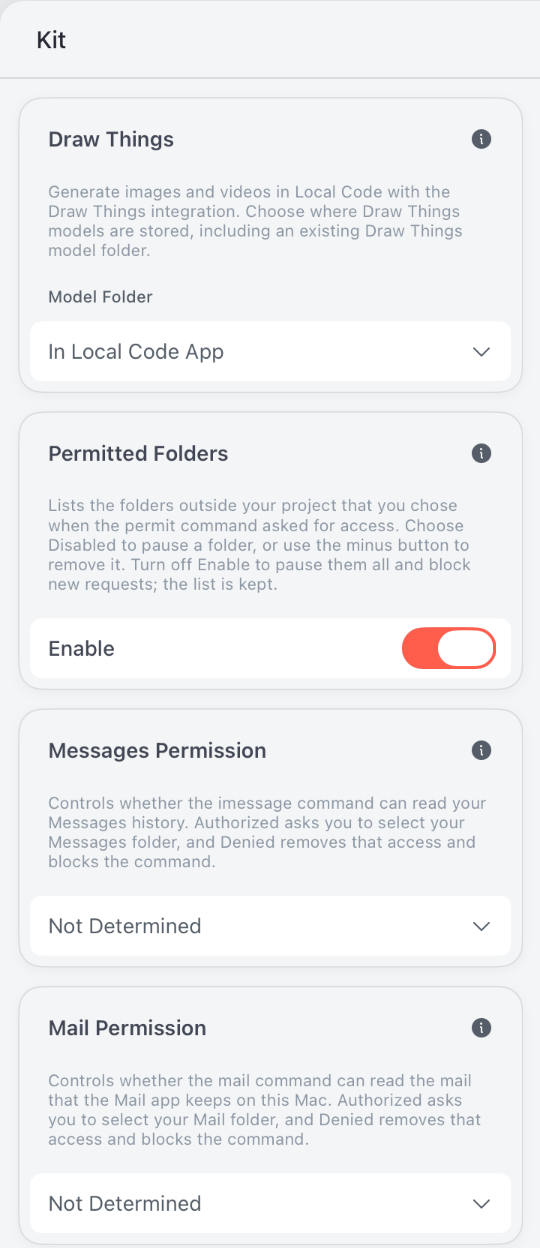
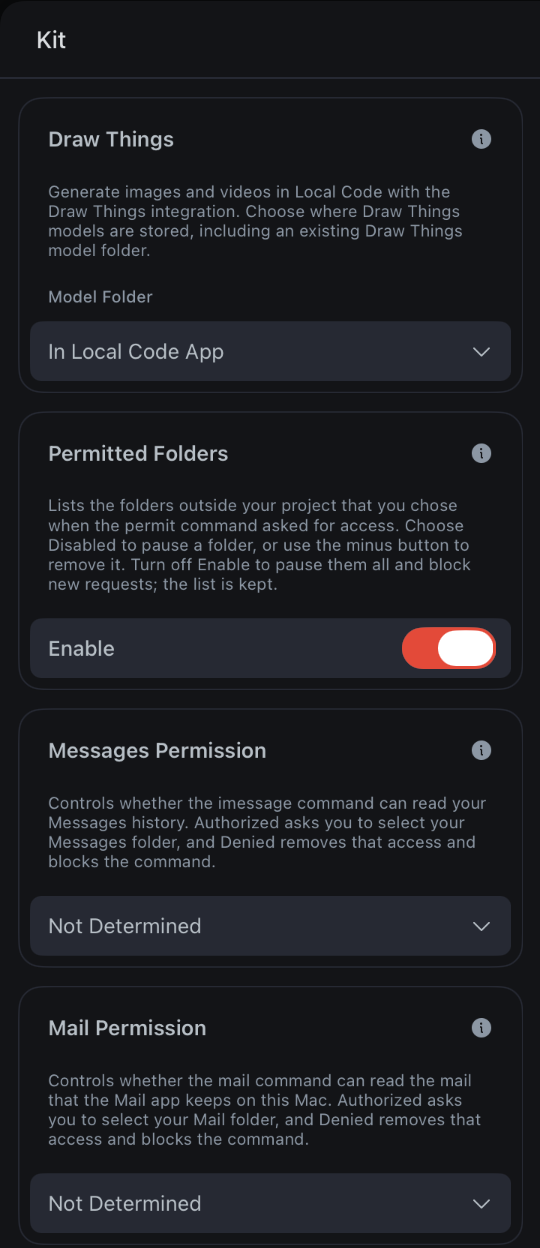
Every folder you've permitted is listed under Permitted Folders in the Kit tab:
- Set a folder to Disabled to pause it. While it's disabled, the agent can't use it or ask for it, or for any folder inside it, again.
- The minus button removes a folder from the list. The agent can ask for it again later.
- Turn off Enable to pause every folder at once and stop new requests. The list is kept for when you turn it back on.
Personal data
These commands reach data that other apps keep. Each has its own permission in the Kit tab.
| Permission | Command | What it can do |
|---|---|---|
| Calendar Permission | calendar | List, create, change and delete events. It can't change recurring events. |
| Photos Permission | photos, and the view tool | Find, export, import, edit and organize photos and videos. Photos asks you before anything is deleted. |
| Mail Permission | mail | Read the mail that the Mail app keeps on this Mac. It can't send, move or delete mail. |
| Notes Permission | notes | Read the notes that the Notes app keeps on this Mac. It can't create, edit or delete notes. |
| Messages Permission | imessage | Read your Messages history on this Mac. It can't send messages or export attachments. |
Calendar and Photos
macOS controls access to Calendar and Photos, and Local Code asks for it the first time the agent uses one of them, or when you choose Authorize in the Kit tab. After that:
- Authorized lets the command run. With limited Photos access, it sees only the photos you selected for Local Code.
- Denied stops Local Code's own command from running. It doesn't take back the access macOS granted; only System Settings can.
- If access was refused in System Settings, the permission shows Denied and can only be changed there, under Privacy & Security.
Mail, Notes and Messages
These apps keep their data in your home folder, so Local Code needs you to point at that folder once. The first time the agent uses one of these commands, or when you choose Authorized in the Kit tab, a folder picker opens at the right place: ~/Library/Mail, ~/Library/Messages, or the Notes data folder. Select that folder to grant access.
- The access is read-only, and Local Code opens it only while the command runs.
- Denied removes the access and blocks the command.
- Not Determined removes the access too, and the next time the agent uses the command, it asks again.
- These permissions don't depend on Permitted Folders. Turning that off doesn't affect them.
Lockdown Mode
Lockdown Mode in Machine Settings keeps Local Code's files unreadable whenever the device is locked, including projects inside App Documents. It's off by default.
- When it's off, Local Code's files stay readable after the first unlock following a restart, so the agent can keep working while the screen is locked.
- When it's on, the agent can't open them until you unlock the device, so a task that runs while it's locked may fail.
- It covers the files in Local Code's own storage. A workspace or permitted folder elsewhere on your Mac keeps its own protection.
The sandbox underneath
These permissions sit on top of Apple's App Sandbox. The agent's shell and tools run inside Local Code, can't launch other programs on your Mac and have no full-disk access. Read what stays local and what needs a connection for how the sandbox and network access fit together.