
Opening Machine Settings
Press ⌘, or click the chip button in the sidebar. On a Mac, Machine Settings is also in the app menu. Press Esc to close it. Restore Default, at the bottom, puts every option on the page back to its default, including the language and font size.
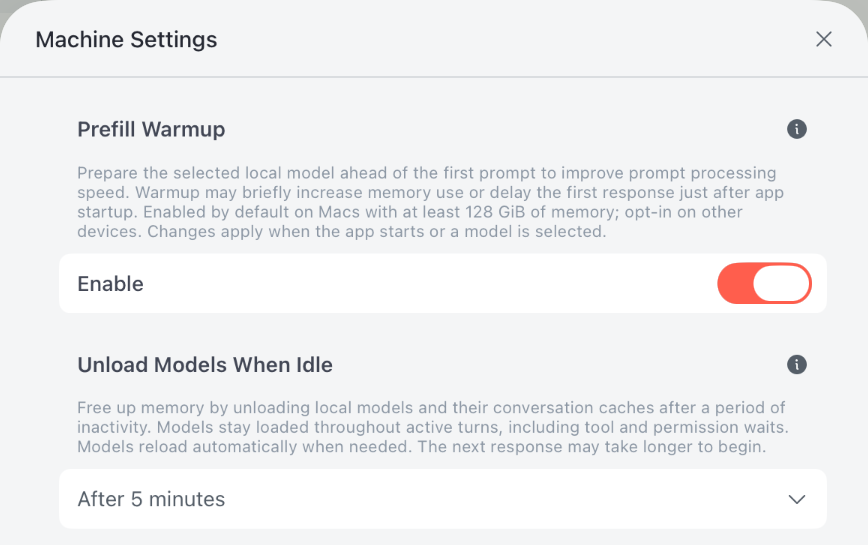
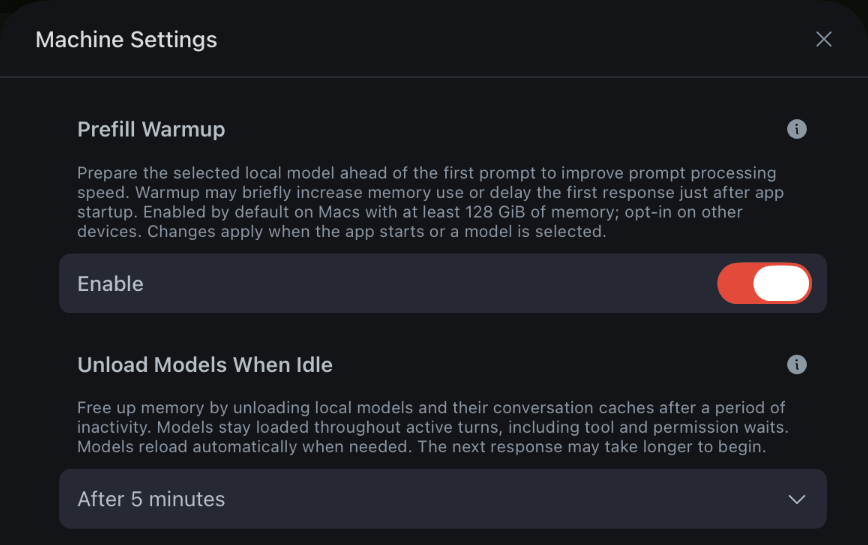
| Setting | Default |
|---|---|
| Prefill Warmup | On with 128 GiB of memory or more, off otherwise |
| Unload Models When Idle | After 5 minutes |
| Prevent Sleep While Working | System only on Mac, System and display on iPhone and iPad |
| Apple System Downloader | Off |
| Use Apple Neural Engine for 8-bit S Models | Automatic, chosen for the chip |
| Weights Streaming | Automatic, chosen for the memory |
| Temporary Directory | A Cleanup button |
| Lockdown Mode | Off |
| Language Settings | The system language |
| Font Size | The system size |
| Reduce Reasoning Animation | Off |
| Bot Mode | Off |
Models and memory
Prefill Warmup
Prefill Warmup prepares the selected local model before your first prompt, so prompt processing is faster. Warmup can briefly use more memory or delay the first response just after the app starts. It's on by default on devices with at least 128 GiB of memory. Changes apply when the app starts or a model is selected.
Unload Models When Idle
Unload Models When Idle frees memory by unloading local models and their conversation caches after a period without activity: After 10 seconds, After 1 minute, After 5 minutes, After 10 minutes or Never. A model stays loaded for the whole of a turn, including while it waits for a tool or a permission. It reloads when it's needed again, so the next response can take longer to begin.
Use Apple Neural Engine for 8-bit S Models
This option decides whether 8-bit S models, such as Qwen 3.8 27B 8-bit S, run on the Apple Neural Engine. On M4, the Neural Engine can run them twice as fast or more. On M5, it's often slower but uses less power. The choices are Automatic, which shows the option it picked for this chip, Yes, Prefer Apple Neural Engine Only, Yes, Prefer Apple Neural Engine and GPU and No.
Weights Streaming
Weights Streaming is the SSD streaming that lets DeepSeek and GLM run on a Mac with less memory than the model. It sets how much memory holds the experts the model uses most; the rest are read from the SSD when a token needs them. More memory makes the model faster and leaves less for other apps.
- The choices are Automatic, 8 to 72 GiB in steps of 8 GiB, and Disabled, which keeps the whole model in memory.
- Automatic leaves 32 GiB for everything else, and turns streaming off with 183 GiB of memory or more. Each time the model loads, it also stays within the memory that's free at that moment.
- A change takes effect the next time the model's weights load.
See Weights Streaming for how much speed each setting buys and when to change it.
Staying awake and downloading
Prevent Sleep While Working
Prevent Sleep While Working keeps the device awake while agents work or models download.
- On a Mac, System only keeps the Mac awake but lets the display turn off and lock as usual. System and display keeps the screen on too. Disabled leaves sleep alone.
- On iPhone and iPad, the system pauses the app when the screen locks, so the choices are System and display, which keeps the screen on, and Disabled.
Apple System Downloader
Apple System Downloader downloads models with the system's download task instead of Local Code's segmented downloads. Turn it on if downloads stall on your network.
Temporary Directory
The system can leave many temporary files behind for Local Code. It removes them when the disk runs low, but Cleanup deletes them now. It also deletes the app's cached GPU programs and everything in the .Trash folder inside the app's Documents.
Lockdown Mode
Lockdown Mode keeps Local Code's files unreadable whenever the device is locked. It's off by default. See permissions for what it covers and what it means for tasks that run while the device is locked.
Language and display
- Language Settings switches the app's language between English, Español, 简体中文, 繁體中文, 日本語, 한국어, Français, Deutsch and Tiếng Việt. Quit the app and open it again to apply the change.
- Font Size changes the size of the app's text: Extra Small, Small, Normal, Large or Extra Large.
- Reduce Reasoning Animation stops the shimmer and sliding text on the reply while the agent works. With Reduce Motion on in the system settings, they always stop.
- Bot Mode says “Bot” and “Bots” instead of “Project” and “Projects” throughout the app, including in menus and keyboard shortcuts.
Keyboard shortcuts
These work on a Mac, and on an iPad with a keyboard.
| Keys | Action |
|---|---|
| ⌘P | New Project |
| ⌘N | New Chat |
| ⌘, | Machine Settings |
| ⌘1 | Projects tab |
| ⌘2 | Settings tab |
| ⌘3 | Kit tab |
| ⌘4 | Activities tab |
| ⌘L | Focus Chat, to type a message |
| ⌘. | Stop Conversation |
| Esc | Close Machine Settings and other sheets |
Continue with agent settings for the options that change how the agent works.